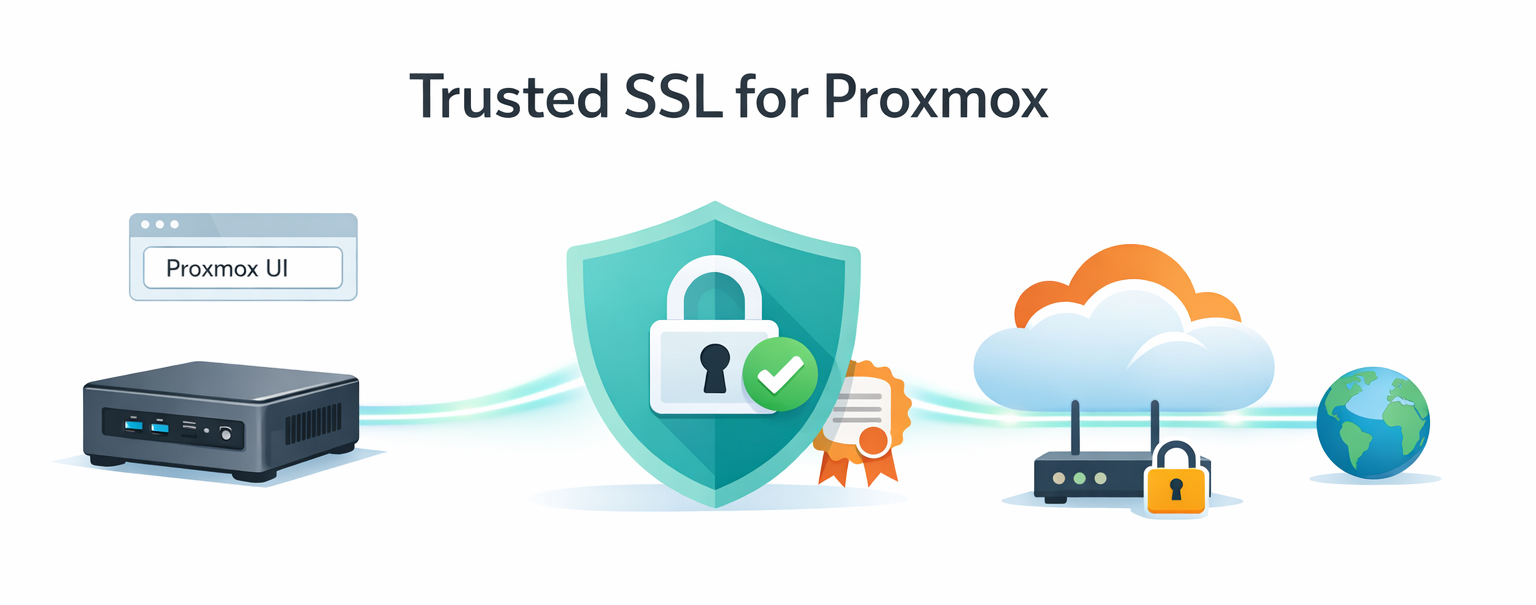
Securing Proxmox with a Real SSL Cert and Cloudflare Tunnel (No open ports)

SSL for Proxmox

I recently reinstalled Proxmox on my Intel NUC and wanted two things:

  1. A real, browser-trusted SSL certificate for the web UI (no more self-signed warnings).
  2. Remote access from anywhere, without forwarding any ports on my home firewall.

Both are doable with Cloudflare (I had my domain there). The first uses Let’s Encrypt with a DNS-01 challenge through Cloudflare’s API. The second uses Cloudflare Tunnel, which creates an outbound-only connection to Cloudflare’s network. Your router stays completely closed.

Here’s the full walkthrough. Takes about 30 minutes if you already have a domain on Cloudflare.

What you need before starting

  • Proxmox installed on a host with internet access
  • A domain managed by Cloudflare (free plan is fine)
  • Network access to your Proxmox host (LAN IP and port 8006)

That’s it.

Part 1 – Get a real SSL certificate

Proxmox has built-in ACME support (the protocol Let’s Encrypt uses) and supports DNS challenges out of the box. The DNS challenge is what we want. It works even when your Proxmox host isn’t reachable from the internet.

Step 1: Create a Cloudflare API token

In the Cloudflare dashboard, go to Manage Account → Account API Tokens → Create Token.

Pick the “Custom token” option (or the new permission policy editor). You need exactly two permissions, scoped to one specific zone (your domain, not the entire account):

  • Zone: Read
  • DNS: Edit

Limiting to one zone follows least-privilege. If the token ever leaks, only that one domain is at risk.

Save the token. Cloudflare only shows it once, so drop it in your password manager.

Step 2: Register an ACME account in Proxmox

In the Proxmox web UI:

Datacenter → ACME → Accounts → Add

  • Account Name: default
  • Email: your email
  • ACME Directory: Let's Encrypt V2
  • Accept TOS → Register

If this fails with Temporary failure in name resolution, your Proxmox host can’t reach the internet via DNS. Check Node → System → DNS and add 1.1.1.1 and 8.8.8.8 as fallbacks alongside your local resolver.

Step 3: Add the Cloudflare DNS plugin

Datacenter → ACME → Challenge Plugins → Add

  • Plugin ID: cloudflare
  • DNS API: Cloudflare Managed DNS
  • API Data:
CF_Token=<paste-your-token-here>

Just one line. Don’t fill in CF_Account_ID, CF_Email, CF_Key, or CF_Zone_ID. For a zone-scoped token, the plugin figures all of that out automatically.

Step 4: Order the certificate

Click your node in the sidebar, then System → Certificates → ACME.

  • For “Using Account”, select the account from Step 2
  • Click Add to add a domain:
    • Challenge Type: DNS
    • Plugin: cloudflare
    • Domain: pve.yourdomain.com (or whatever subdomain you want)
  • Click Order Certificates Now

You’ll see a task viewer that takes about 60 to 90 seconds. It will:

  1. Talk to Let’s Encrypt
  2. Create a temporary _acme-challenge TXT record in Cloudflare
  3. Wait for DNS propagation
  4. Prove ownership
  5. Download the cert and restart pveproxy

When it ends with TASK OK, you have a valid Let’s Encrypt cert. Your browser will still show a warning if you access Proxmox by IP, because the cert is bound to the hostname, not the IP. That’s expected, and we’ll fix it in Part 2.

The cert auto-renews around day 60 of its 90-day lifespan. No further action needed.

Part 2 – Cloudflare Tunnel for remote access

A tunnel is an outbound connection from your network to Cloudflare’s edge. When someone visits pve.yourdomain.com, Cloudflare routes that traffic through the tunnel to your Proxmox host. Nothing inbound. Your firewall stays closed.

Step 5: Create a Debian LXC for cloudflared

Best practice is to keep services off the Proxmox hypervisor itself. A small Debian LXC is the right home for cloudflared.

First, download the template. Click your local storage in the sidebar, then go to CT Templates → Templates, search for debian-13-standard, and click Download.

Then click Create CT (top right of the Proxmox UI):

  • General: hostname cloudflared, set a root password, leave Unprivileged checked
  • Template: pick the Debian 13 template you just downloaded
  • Disks: 8 GiB on local-lvm (default)
  • CPU: 1 core
  • Memory: 512 MiB RAM, 512 MiB swap
  • Network: Bridge vmbr0, IPv4 set to DHCP, IPv6 DHCP or None
  • DNS: leave defaults
  • Confirm: check “Start after created” → Finish

About 10 seconds later, you’ll have a running LXC.

Step 6: Create the tunnel in Cloudflare

Open the Cloudflare Zero Trust dashboard and go to Networks → Tunnels → Create a tunnel.

  • Connector type: Cloudflared
  • Tunnel name: pve-tunnel (or whatever)
  • Save

You’ll land on the “Install and run a connector” page. Pick Debian and 64-bit. You’ll see install commands that include a long token at the end. Keep this tab open, we’ll use the commands in the next step. Don’t share this token with anyone. It’s effectively root credentials for the tunnel.

Step 7: Install cloudflared in the LXC

Click your new cloudflared LXC in the Proxmox sidebar and open Console. Login as root.

Debian’s standard template doesn’t include curl by default, so install it first:

apt-get update && apt-get install -y curl

Now install cloudflared (note: I dropped sudo since you’re already root):

mkdir -p --mode=0755 /usr/share/keyrings
curl -fsSL https://pkg.cloudflare.com/cloudflare-public-v2.gpg | tee /usr/share/keyrings/cloudflare-public-v2.gpg >/dev/null
echo 'deb [signed-by=/usr/share/keyrings/cloudflare-public-v2.gpg] https://pkg.cloudflare.com/cloudflared any main' | tee /etc/apt/sources.list.d/cloudflared.list
apt-get update && apt-get install -y cloudflared

Verify the install:

cloudflared --version

Then run the service install command from the Cloudflare tab (the one with your token). Drop the sudo from the front:

cloudflared service install eyJhIjoi...<your-token>...

This installs cloudflared as a systemd service, starts it, and enables it on boot.

Confirm it’s running and connected:

systemctl status cloudflared

Look for active (running) and several Registered tunnel connection log lines. Cloudflared opens four redundant connections to Cloudflare’s edge.

Switch back to the Cloudflare browser tab and scroll to the Connectors section at the bottom. Within 30 seconds, your connector should show up with a green healthy status. Click Next.

Step 8: Route the tunnel to Proxmox

You’re now on the Public Hostname configuration:

FieldValue
Subdomainpve
Domainyourdomain.com
Path(empty)
Service TypeHTTPS
URL<your-proxmox-LAN-IP>:8006

Click Additional application settings → TLS and set:

  • Origin Server Name: pve.yourdomain.com
  • Leave everything else default (No TLS Verify OFF, HTTP2 OFF, Match SNI to Host OFF)

The Origin Server Name setting tells cloudflared to send the right SNI when connecting to Proxmox. Proxmox responds with the cert that matches that hostname, and TLS verification passes cleanly. End-to-end encryption with proper validation, no --no-verify shortcuts.

Click Save. Cloudflare automatically creates the CNAME record pointing pve.yourdomain.com to your tunnel.

Step 9: Test it

Open a new browser tab and go to https://pve.yourdomain.com.

You should see:

  • A valid green padlock
  • Proxmox’s login page
  • No certificate warnings, anywhere

Login with your Proxmox credentials. You’re done.

Bonus: split-horizon DNS for fast local access

When you’re at home, going Mac → Cloudflare → back to your house adds latency. The fix is split-horizon DNS. Your local resolver returns the LAN IP for pve.yourdomain.com, while public DNS keeps pointing to Cloudflare.

If you run OPNsense, pfSense, AdGuard Home, Pi-hole, or similar, add a host override:

  • Hostname: pve
  • Domain: yourdomain.com
  • IP: your Proxmox LAN IP

Or, for a single Mac, just edit /etc/hosts:

sudo nano /etc/hosts

Add:

192.168.x.x pve.yourdomain.com

Save. Now pve.yourdomain.com resolves to your LAN IP locally, but to Cloudflare from outside. Same valid cert either way, since it’s bound to the hostname.

A couple of things to keep in mind

  • The :8006 port is only needed on the LAN. When you’re at home and going direct to your Proxmox host, the URL is https://pve.yourdomain.com:8006. From outside, you just use https://pve.yourdomain.com. Cloudflare Tunnel handles the port mapping for you (the public hostname rule we set up points to <LAN-IP>:8006 internally).
  • The /etc/hosts trick only works at home. If you hardcode pve.yourdomain.com → 192.168.x.x in your laptop’s hosts file and then take the laptop to a coffee shop or on a trip, it’ll fail to connect because that LAN IP isn’t reachable from outside your house. If you travel often, either skip the hosts file approach (just accept the small Cloudflare round-trip latency at home), or put the override on your home router/resolver instead so it only applies when your laptop is connected to your home network.

Why this setup is good

  • No open ports. Your firewall stays closed. The tunnel is outbound-only.
  • Real SSL everywhere. End-to-end TLS with a trusted cert, valid on LAN and over the internet.
  • Auto-renewing certs. Proxmox handles the 90-day rotation via Let’s Encrypt.
  • Clean separation. cloudflared runs in its own LXC, not on the hypervisor.
  • Optionally upgradeable. Add Cloudflare Access in front for SSO/MFA on top of Proxmox’s own login. Zero Trust without changing Proxmox itself.

Things to remember

  • The Cloudflare API token and the tunnel token are sensitive. Treat them like passwords. If either ever appears in a screenshot, log, or shared chat, rotate it immediately (Cloudflare dashboard → roll the token / refresh the tunnel token).
  • If you rebuild the LXC, you’ll need to run cloudflared service install <token> again with a fresh token.
  • The cert auto-renews, but it’s worth checking once a year that it’s still rotating cleanly.

That’s the whole flow. Real cert, no open ports, fast LAN access, and remote access from anywhere your domain resolves. If you’re running other services on the same Proxmox box (Home Assistant, Jellyfin, dashboards, and so on) you can route them through the same tunnel. Just add more public hostnames pointing to their internal URLs.

Deploying JAIS AI: Docker vs Native Performance Analysis with Python Implementation

Building a high-performance Arabic-English AI deployment solution with benchmarking


The JAIS (Jebel Jais) AI model represents a breakthrough in bilingual Arabic-English language processing, developed by Inception AI, MBZUAI, and Cerebras Systems. This post details the implementation of a production-ready deployment solution with comprehensive performance analysis comparing Docker containerization versus native Metal GPU acceleration.

In this project, I used a model provided by mradermacher/jais-family-30b-16k-chat-i1-GGUF, a recognized quantization specialist in the community. The mradermacher quantized version was chosen because:

  • iMatrix Quantization: Advanced i1-Q4_K_M provides superior quality vs static quantization. Research shows that weighted/imatrix quants offer significantly better model quality than classical static quants at the same quantization level
  • GGUF Format: Optimized for llama.cpp inference with Metal GPU acceleration
  • Balanced Performance: Q4_K_M offers the ideal speed/quality/size ratio (25.97 GiB)
  • Production Ready: Pre-quantized and extensively tested for deployment
  • Community Trusted: mradermacher is known for creating high-quality quantizations with automated processes and extensive testing
  • Superior Multilingual Performance: Studies indicate that English imatrix datasets show better results even for non-English inference, as most base models are primarily trained on English

Solution Architecture

The deployment solution consists of several key components designed for maximum flexibility and performance:

Project Structure

jais-ai-docker/
├── run.sh                      # Main server launcher
├── test.sh                     # Comprehensive test suite  
├── build.sh                    # Build system (Docker/Native)
├── cleanup.sh                  # Project cleanup utilities
├── Dockerfile                  # ARM64 optimized container
├── src/
│   ├── app.py                  # Flask API server
│   ├── model_loader.py         # GGUF model loader with auto-detection
│   └── requirements.txt        # Python dependencies
├── config/
│   └── performance_config.json # Performance presets
└── models/
    └── jais-family-30b-16k-chat.i1-Q4_K_M.gguf  # Quantized model

Python Implementation Overview

Flask API Server

The core server implements a robust Flask application with proper error handling and environment detection:

# Configuration with environment variable support
MODEL_PATH = os.environ.get("MODEL_PATH", "/app/models/jais-family-30b-16k-chat.i1-Q4_K_M.gguf")
CONFIG_PATH = os.environ.get("CONFIG_PATH", "/app/config/performance_config.json")

@app.route('/chat', methods=['POST'])
def chat():
    """Main chat endpoint with comprehensive error handling."""
    if not model_loaded:
        return jsonify({"error": "Model not loaded"}), 503
    
    try:
        data = request.json
        message = data.get('message', '')
        max_tokens = data.get('max_tokens', 100)
        
        # Generate response with timing
        start_time = time.time()
        response_data = jais_loader.generate_response(message, max_tokens=max_tokens)
        generation_time = time.time() - start_time
        
        # Add performance metrics
        response_data['generation_time_seconds'] = round(generation_time, 3)
        response_data['model_load_time_seconds'] = round(model_load_time, 3)
        
        return jsonify(response_data)
        
    except Exception as e:
        logger.error(f"Error in chat endpoint: {e}")
        return jsonify({"error": str(e)}), 500

Key Features:

  • Environment Variable Configuration: Flexible path configuration for different deployment modes
  • Performance Metrics: Built-in timing for load time and generation speed
  • Error Handling: Comprehensive exception handling with proper HTTP status codes
  • Health Checks: Monitoring endpoint for deployment orchestration

Complete Flask implementation: src/app.py

Smart Model Loader

The model loader implements intelligent environment detection and optimal configuration:

class JaisModelLoader:
    """
    Optimized model loader for mradermacher Jais AI GGUF models with proper error handling
    and resource management.
    """
    
    def _detect_runtime_environment(self) -> str:
        """Auto-detect the runtime environment and return optimal performance mode."""
        # Check if running in Docker container
        if os.path.exists('/.dockerenv') or os.path.exists('/proc/1/cgroup'):
            return 'docker'
        
        # Check if running natively on macOS with GGML_METAL environment variable
        if (platform.system() == 'Darwin' and 
            platform.machine() == 'arm64' and 
            os.environ.get('GGML_METAL') == '1'):
            return 'native_metal'
        
        return 'docker'  # Default fallback

    def _get_performance_preset(self) -> Dict[str, Any]:
        """Get optimized settings based on detected environment."""
        presets = {
            'native_metal': {
                'n_threads': 12,
                'n_ctx': 4096,
                'n_gpu_layers': -1,  # All layers to GPU
                'n_batch': 128,
                'use_metal': True
            },
            'docker': {
                'n_threads': 8,
                'n_ctx': 2048,
                'n_gpu_layers': 0,   # CPU only
                'n_batch': 64,
                'use_metal': False
            }
        }
        
        return presets.get(self.performance_mode, presets['docker'])

Key Innovations:

  • Automatic Environment Detection: Distinguishes between Docker and native execution
  • Performance Presets: Optimized configurations for each environment
  • Resource Management: Intelligent GPU/CPU allocation based on available hardware
  • Metal GPU Support: Full utilization of Apple Silicon capabilities

Complete model loader implementation: src/model_loader.py

Comprehensive Testing Framework

The testing framework provides automated performance benchmarking across deployment modes:

# Automated test execution
./test.sh performance  # Performance benchmarking
./test.sh full         # Complete functional testing
./test.sh quick        # Essential functionality tests

The test suite automatically detects running services and performs comprehensive evaluation with detailed metrics collection for tokens per second, response times, and system resource usage.

Complete test suite: test.sh

Performance Test Results and Analysis

Comprehensive benchmarking was conducted comparing Docker containerization versus native Metal GPU acceleration:

Test Environment

  • Hardware: Apple M4 Max
  • Model: JAIS 30B (Q4_K_M quantized, 25.97 GiB)
  • Tests: 5 different scenarios across languages and complexity levels

Performance Comparison Results

Test Scenario Docker (tok/s) Native Metal (tok/s) Speedup Performance Gain
Arabic Greeting 3.53 12.58 3.56x +256%
Creative Writing 3.93 13.06 3.32x +232%
Technical Explanation 4.08 12.98 3.18x +218%
Simple Greeting 2.54 10.24 4.03x +303%
Arabic Question 4.44 13.24 2.98x +198%

Average Performance Summary:

  • Docker CPU-only: 3.70 tokens/second
  • Native Metal GPU: 12.42 tokens/second
  • Overall Improvement: +235% performance gain

Configuration Analysis

Aspect Docker Container Native Metal
GPU Acceleration CPU-only Metal GPU (All 49 layers)
Threads 8 12
Context Window 2,048 tokens 4,096 tokens
Batch Size 64 128
Memory Usage 26.6 GB CPU 26.6 GB GPU + 0.3 GB CPU
Load Time ~5.2 seconds ~7.7 seconds

Testing Methodology

The testing approach followed controlled environment principles:

# Build and deploy Docker version
./build.sh docker --clean
./run.sh docker

# Run performance benchmarks
./test.sh performance

# Switch to native and repeat
docker stop jais-ai
./run.sh native
./test.sh performance

Test Design Principles:

  • Controlled Environment: Same hardware, same model, same prompts
  • Multiple Iterations: Each test repeated for consistency
  • Comprehensive Metrics: Token generation speed, total response time, memory usage
  • Language Diversity: Tests in both Arabic and English
  • Complexity Variation: From simple greetings to complex explanations

Key Findings and Recommendations

Performance Findings

  1. Native Metal provides 3.36x average speedup over Docker CPU-only
  2. Consistent performance gains across all test scenarios (2.98x – 4.03x)
  3. Metal GPU acceleration utilizes Apple Silicon effectively
  4. Docker offers portability with acceptable performance trade-offs

Deployment Recommendations

Use Native Metal When:

  • Maximum performance is critical
  • Interactive applications requiring low latency
  • Development and testing environments
  • Apple Silicon hardware available

Use Docker When:

  • Deploying to production servers
  • Cross-platform consistency required
  • Container orchestration needed
  • GPU resources unavailable

Technical Insights

  • Model Quantization: Q4_K_M provides optimal balance of speed/quality/size
  • Environment Detection: Automatic configuration prevents manual tuning
  • Resource Utilization: Full GPU offloading maximizes Apple Silicon capabilities
  • Production Readiness: Both deployments pass comprehensive functional tests

Repository and Resources

Complete Source Code: GitHub Repository

The repository includes full Python implementation with detailed comments, comprehensive test suite and benchmarking tools, Docker configuration and build scripts, performance analysis reports and metrics, deployment documentation and setup guides, and configuration presets for different environments.

Quick Start

git clone https://github.com/sarmadjari/jais-ai-docker
cd jais-ai-docker
./scripts/model_download.sh  # Download the model
./run.sh                     # Interactive mode selection

Conclusion

This implementation demonstrates effective deployment of large language models with optimal performance characteristics. The combination of intelligent environment detection, automated performance optimization, and comprehensive testing provides a robust foundation for production AI deployments.

The 3.36x performance improvement achieved through Metal GPU acceleration showcases the importance of hardware-optimized deployments, while Docker containerization ensures portability and scalability for diverse production environments.

The complete solution serves as a practical reference for deploying bilingual AI models with production-grade performance monitoring and testing capabilities.

This is just a start, I will keep tuning and hopefully updating the documentations as I get some time in the future.

Creating a Clean Python Development Environment using Docker and Visual Studio Code

Python

Python is a high-level, dynamically-typed programming language that has taken the software development industry by storm. It’s known for its simplicity, readability, and vast library ecosystem. Python has become the language of choice for many in web development, data science, artificial intelligence, scientific computing, and more. Its versatile nature makes it ideal for both beginners and experienced developers.

Docker

Docker is a revolutionary tool that allows developers to create, deploy, and run applications in containers. Containers can be thought of as lightweight, stand-alone packages that contain everything needed to run an application, including the code, runtime, libraries, and system tools. Docker ensures that an application runs consistently across different environments, eliminating the infamous “it works on my machine” problem. It simplifies the process of setting up, distributing, and scaling applications, making it an invaluable tool for modern development.

Visual Studio Code

Visual Studio Code (VS Code) is a powerful, open-source code editor developed by Microsoft. It provides a lightweight yet feature-rich environment that supports a multitude of programming languages, including Python. With a vast ecosystem of extensions, integrated Git support, debugging capabilities, and an intuitive interface, VS Code has quickly become the editor of choice for many developers around the world.

Why Combine Python, Docker, and Visual Studio Code?

You might be wondering why one would want to combine Python, Docker, and Visual Studio Code. The answer lies in the fusion of simplicity, consistency, and efficiency. By using Docker, you can ensure that your Python application runs the same way, irrespective of where it’s deployed. This means no more headaches about dependency issues or system incompatibilities. On the other hand, VS Code provides a seamless development experience, with features that play nicely with both Python and Docker. Combining these three tools gives you a streamlined, consistent, and efficient development workflow.

Steps to Set Up Your Dev Environment:

  1. Install Prerequisites:
    • Install Docker and ensure it’s running.
    • Download and install Visual Studio Code.
    • Install the ‘Python’ and ‘Docker’ extensions from the Visual Studio Code marketplace.
  2. Setup Docker:
    • Create a new directory for your project.
    • Inside this directory, create a file named Dockerfile.
    • In the Dockerfile, start with the following content:

    • Create a requirements.txt file in the same directory, listing any Python libraries your project depends on,following content:

      numpy
      pandas

      or you can specify the library version:

      tensorflow==2.3.1
      uvicorn==0.12.2
      fastapi==0.63.0

  3. Build the Docker Container Image:
    • In VS Code, open the folder containing your Dockerfile and other project files.
    • Use the Docker extension to build your Docker image by right-clicking the Dockerfile and selecting ‘Build Image’ or run the command
      docker build -t mypythonenv .


    • Run the container and mount your working directory or folder where you have your Python code into the container
      docker run -it --rm -v C:\Users\Sarmad\Projects\MyPythonProject:/usr/src/app mypythonenv


  4. Attach the running Docker Container
    • Attach the running Python container into Visual Studio Code to run and debug your Python Code, click on the Docker icon, then right-click on the running container (in our example called “mypythonenv”) then attach it to Visual Studio Code


    • We have now Visual Studio Code accessing the Python environment running inside the Docker container, the container has access to your Python code files that were mounted in the docker run command line


  5. Run the Python code
    • To run our “hello-world.py” code, click on the Run and Debug icon, then the blue “Run and Debog” button, select Python File.


    • The Python Code will be running inside your container


  6. Clean Up & Share:
    • Once done with development, you can push your Docker image to a registry (like Docker Hub) or your own private registry for sharing or deployment.

By following these steps, you’ll have a Python development environment that’s clean, consistent, and easy to use.

Happy coding!